Markers
The Markers card controls data point markers displayed on each line. All marker settings support per-series customization through the "Apply settings to" dropdown.

Per-Series Settings
At the top of the Markers card, a dropdown lets you choose which series to configure:
- All Series — Sets the default values for all series
- <Series Name> — Overrides settings for a specific series only
Series without explicit overrides inherit the "All Series" defaults.
Properties
| Property | Description | Default |
|---|---|---|
| Show Markers | Display data point markers for this series | Off |
| Shape | Marker shape (see below) | Circle |
| Marker Size | Size of markers in pixels | 5 |
| Marker Color | Color override for markers | Series color |
Marker Shapes
Six shapes are available:
- Circle — Standard round marker
- Square — Square marker
- Rounded Square — Square with rounded corners
- Diamond — Diamond (rotated square)
- Triangle — Upward-pointing triangle
- Cross — X-shaped marker
Default Behavior — Series Color Markers
When you leave Marker Color empty, each marker automatically inherits the color of its series:
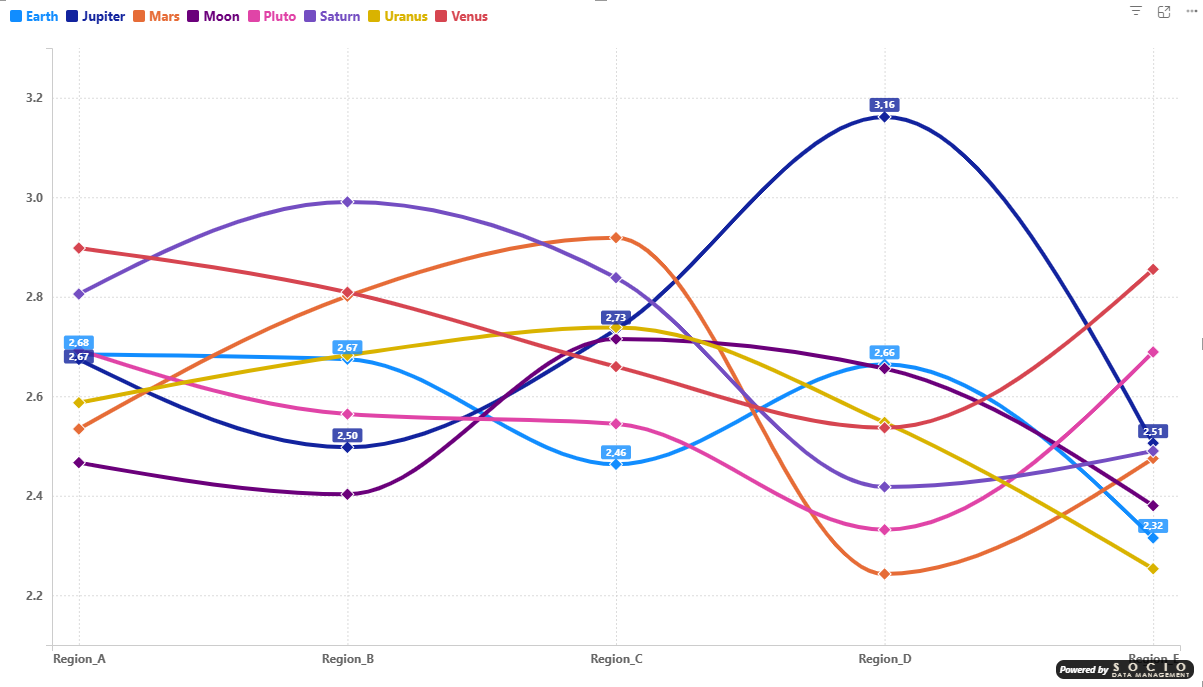
Custom Marker Override
You can also override the color to apply a uniform marker style across all series — for example, setting all markers to Rounded Square in pink:


Compatibility
The Markers card uses the lineStyles object name internally, matching the standard Power BI Line Chart format. When converting a report from the standard Line Chart to the SDM Smart Line Chart, per-series marker settings (shape, size) are preserved automatically.