Scatter Settings

Point Appearance
| Property | Description | Default |
|---|---|---|
| Point Color | Default color for all points | #4682B4 |
| Point Radius | Base radius in pixels | 5 |
| Marker Shape | Circle, Cross, Triangle, Square, Logo | Circle |
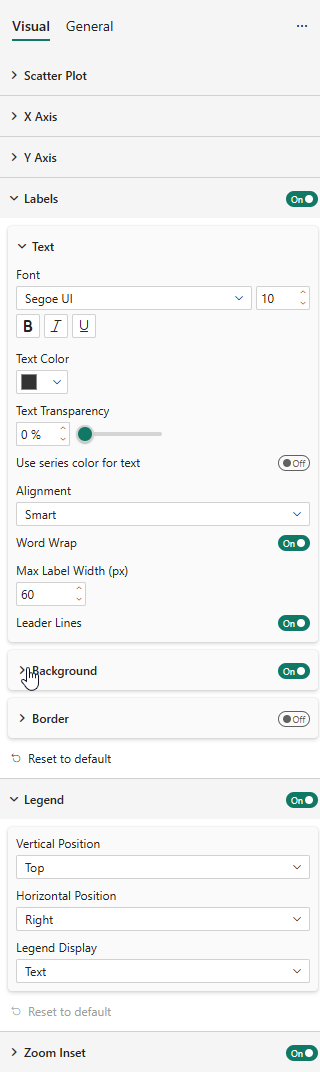
Data Labels
The scatter plot features intelligent label placement that goes far beyond the standard Power BI scatter chart:
- Automatic positioning — Labels are placed to minimize overlaps with other labels and data points
- Automatic line wrapping — Long labels wrap automatically to avoid extending beyond the chart boundaries
- Series-colored text and background — Use the Use Series Color option on text or background to instantly see which category each label belongs to
On a dense scatter plot, identifying which point belongs to which category can be challenging. Enable Use Series Color on the label background to give each label a colored badge matching its category. This feature is not available in the standard Power BI Scatter Chart and dramatically improves readability, especially when points from different categories overlap.
Label Properties
| Property | Description | Default |
|---|---|---|
| Font | Font family and size | Segoe UI, 10px |
| Text Color | Label text color | #333333 |
| Use Series Color for Text | Color label text to match its category | Off |
| Alignment | Smart (automatic) or manual | Smart |
| Word Wrap | Automatically wrap long labels | On |
| Max Label Width | Maximum width before wrapping (px) | 60 |
| Leader Lines | Show connector lines from label to data point | On |
| Background | Show a colored background behind labels | Off |
| Border | Show a border around labels | Off |
Axes
Both X and Y axes support:
| Property | Description |
|---|---|
| Range Min/Max | Manual axis bounds (leave empty for auto) |
| Logarithmic | Logarithmic scale |
| Invert Range | Reverse the axis direction |
| Show | Show/hide axis values |
| Font | Label font settings |
| Units | Auto, None, k, M, Mds |
| Decimal Places | Auto, 0–4 |
| Origin | Auto, Zero, Center |
| Label Orientation | Auto, Horizontal, Oblique, Vertical |
| Automatic Size | Auto-adjust font size |
| Show Title | Display axis title |
Legend
| Property | Description | Default |
|---|---|---|
| Show | Show/hide legend | On |
| Vertical Position | Top, Center, Bottom | Top |
| Horizontal Position | Left, Center, Right | Right |
| Legend Display | Text, Logo and Text, Logo | Text |
| Logo Width/Height | Logo dimensions (px) | 20 |
Zoom Inset
The zoom inset is one of the most distinctive features of the Smart Scatter Plot. It magnifies a selected rectangular region of the chart and displays it as an enlarged inset — making it easy to explore dense clusters of points without losing the overall context.
Unlike features that only work in edit mode, the zoom inset is fully interactive in reading mode. Report consumers can explore dense data areas without any editing permissions. This makes it ideal for published reports and dashboards.
Properties
| Property | Description |
|---|---|
| Zoom Active | Enable/disable the zoom inset |
| Source X/Y | Top-left corner of the source region (%) |
| Source Width/Height | Size of the source region (%) |
| Inset X/Y | Position of the magnified view (%) |
| Inset Width/Height | Size of the magnified view (%) |
All values are percentages of the plot area (0–100). Because values are expressed as percentages, the zoom inset maintains its relative position and size when the chart is resized or printed at a different resolution.

In most cases, you do not need to set these values manually. When the zoom inset is enabled, you can drag and resize both the source region and the inset window directly on the chart. The percentage values update automatically. Manual entry is only useful when you want to replicate the exact same zoom configuration across multiple charts.
Zoom Inset in action
Without zoom, dense clusters make it hard to read individual labels:

With the zoom inset enabled, the dense area is magnified and labels are much easier to read:

Logo Markers
When a Logo data role is provided, the Logo marker shape becomes available in the Marker Shape dropdown. Each data point is then rendered as its own logo image instead of a geometric symbol.
- Each point displays its own logo from the dataset — not the legend group's logo
- Points without a logo gracefully fall back to a circle marker
- Logo size follows the Size encoding, just like other marker shapes
- Logos are also rendered inside the Zoom Inset when active
The Logo data role is bound per row. If your dataset has a different image for each point (e.g., country flags, product photos), each point will show its own image. If the logo column contains the same image for all points in a legend group, all points in that group will share the same logo — no extra configuration needed.
Data Colors
The Data Colors card lets you customize point colors from the formatting pane:
- With a Legend field: one color picker per legend category
- Without a Legend field: one color picker per point label (Values)
- Colors set in the formatting pane override the default palette but are overridden by the Color data role (DAX measure)
Analytics (Scatter)
The scatter plot supports analytics lines on both axes. Unlike standard Power BI visuals, which allow adding multiple instances of each line type, custom visuals are limited by the API to one instance per line type. To compensate, the SDM Scatter Plot offers a Both axis option that draws the same statistic on both X and Y axes simultaneously.
- X Constant Line / Y Constant Line — User-defined constant values
- Min Line, Max Line, Median Line, Average Line — Each with an axis choice: X Axis, Y Axis, or Both
- Symmetry Shading — Highlights the area where Y > X or Y < X
- Ratio Line — Draws the Y = X diagonal
Select Both on the Average Line to draw a crosshair at the center of mass of the data distribution. The same style, color, and shade settings apply to both the vertical and horizontal lines.
Common Properties
Each reference line has:
| Property | Description |
|---|---|
| Show | Toggle the line on/off |
| Measure | X Axis, Y Axis, or Both (stat lines only) |
| Line Color | Color of the line |
| Transparency | Line opacity (0–100%) |
| Line Style | Solid, Dashed, Dotted |
| Width | Line thickness (px) |
| Position | In Front or Behind the points |
Shade Area
Each reference line can optionally shade the area on one side:
| Property | Description |
|---|---|
| Shade Area | Enable area shading |
| Position | Before or After the line |
| Match Line Color | Use the line color for shading |
| Shade Color | Custom shade color |
| Transparency | Shade opacity |
Analytics lines are particularly useful on scatter plots to define quadrants (using X and Y constant lines), highlight performance thresholds, or identify the center of mass of the data distribution.